Handle vs CompanyCam: a free CompanyCam alternative for small crews

Yes, there is a free CompanyCam alternative for a small crew on iPhone and Android: Handle (usehandle.app, the job photo app; not Handle.com or Handle by Texada). As of October 2026, CompanyCam has no free plan, only a 14-day trial with no card, and a crew of 3 pays $149 a month, or $119 a month billed annually (CompanyCam pricing). Handle does the same core job free for your whole crew: no trial, no card, no per-person fees. It is not the same product, and the tables below show what you give up.
Is there a free alternative to CompanyCam?
Yes. As of October 2026, a small crew can keep job photos for free in three ways: the free tier of a paid photo app (with caps on photos or projects), a group text or shared album, or Handle, a job photo app that is free for the whole crew. Which fits depends on how many photos you take, which phones the crew carries and what you send customers.
The free tiers have caps: as of October 2026, SiteCam's free plan allows 3 projects and 500 photos, Timemark's 100 photos and 3 projects, and Fieldwire Basic 5 users and 3 projects, built around drawings and tasks. A group text costs nothing, but nothing in it is filed by job (group text vs. a job photo app). CompanyCam alternatives for small crews compares the paid and free options with their prices.
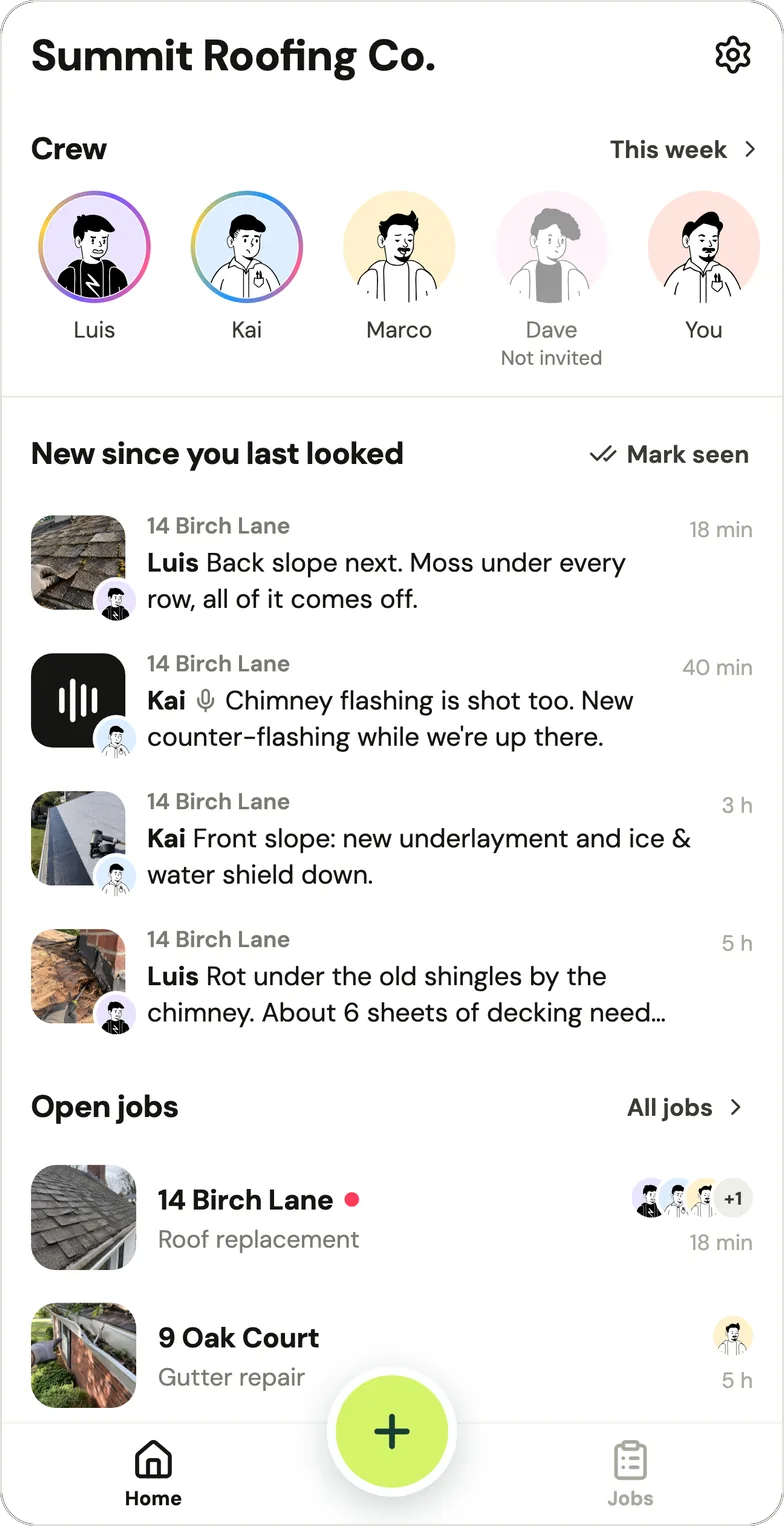
Handle, as an example (it's our app). Handle is a free iPhone and Android app for small field crews: it keeps the crew's job photos, notes and voice notes together, job by job, on every phone in the crew. It covers what a small crew uses CompanyCam for every day: photos with who took them and when, before and afters, markup, photos kept on the phone when there's no signal, and a stamped photo or a whole-job PDF for the customer. It is free for your whole crew: no trial, no card, no per-person fees (Is Handle free?). It does less than CompanyCam, and the rest of this page says exactly where.
Does CompanyCam have a free plan?
No. As of October 2026, CompanyCam has no free plan: its plans are Core, Crew, Scale and Enterprise, and it offers "a free 14-day trial — no credit card required" (CompanyCam Plans Explained). Its features page still says "Sign up for a free account", which leads to that trial.
CompanyCam did have a free plan once. Its pricing page listed a $0 "Free" plan for 1–3 users and 50 projects in June 2020 (archived June 16, 2020) still in June 2021 (archived June 21, 2021), and as a $0 "Basic" plan with up to 50 projects in March 2023 (archived March 26, 2023); by May 2023 it was gone (archived May 29, 2023). Older posts and some chatbot answers mix up three periods:
| What you may read | When it was true | CompanyCam as of October 2026 |
|---|---|---|
| "CompanyCam has a free plan" | 2020 to spring 2023 ("Basic" by 2023) | No free plan; a 14-day trial |
| "$79 a month for up to 3 users" | Pro's annual price in May 2025, when "Every plan starts at 3 users" (archived May 18, 2025) | $79 a month buys 1 user on Core |
| Pro, Premium and Elite plans | Pro and Premium in 2023; Elite added by May 2025 | Core, Crew, Scale, Enterprise |
Two billing rules in CompanyCam's help center, as of October 2026, matter before the trial ends: buying inside the iPhone app caps you at 3 people ("The App Store subscription to CompanyCam caps you at 3 Users", Transitioning to Direct Pay), and "Annual subscriptions are non-refundable", with anyone added mid-year billed a prorated amount the same day you invite them (Annual Subscription Policy).
Price and billing come up often in reviews. Handle's team read and coded 657 CompanyCam reviews from the App Store, Google Play, Capterra and Facebook, dated April 2017 to September 2026: 43 of them complain about pushy sales, a price they didn't see until the trial ended, or canceling, and 40 about the price itself. These counts describe that sample, not all CompanyCam users.
What does CompanyCam cost a crew of 1, 2, 3, 5 or 10?
As of October 2026, CompanyCam costs $79 a month for 1 person, $113 for 2, $149 for 3, $217 for 5 and $387 for 10, or $63, $92, $119, $177 and $322 a month billed annually, according to its own calculator on companycam.com/pricing. Handle (our app) is free for your whole crew: no trial, no card, no per-person fees.
CompanyCam's "Calculate for your crew" calculator on companycam.com/pricing, run on October 17, 2026 (as of October 2026, US dollars, before tax; "per year" is the annual price times 12, charged up front):
| Crew size | Cheapest CompanyCam plan | Billed monthly | Billed annually, per month | Billed annually, per year | Handle |
|---|---|---|---|---|---|
| 1 person | Core | $79 | $63 | $756 | Free |
| 2 people | Core, 1 extra user | $113 | $92 | $1,104 | Free |
| 3 people | Crew (Core stops at 2) | $149 | $119 | $1,428 | Free |
| 5 people | Crew, 2 extra users | $217 | $177 | $2,124 | Free |
| 10 people | Crew, 7 extra users | $387 | $322 | $3,864 | Free |
Why 3 people means a plan change: CompanyCam's Core plan "Includes 1 User (2 User Limit)", and its help center says "Core is available for 1–2 users only and cannot be expanded beyond 2." A third person means the Crew plan, which includes 3 users; each person past that costs $34 a month, or $29 billed annually. Paid month to month for a year, a 5-person crew spends $2,604. The Scale plan (with LiDAR, signatures and translations) costs $299 a month for 3 users, $367 for 5 and $537 for 10, billed monthly.
On CompanyCam, "A seat is one person with their own login", and "Anyone who needs to capture photos, manage projects, or access job documentation gets a seat" (pricing page FAQ, as of October 2026). Some owners save by leaving people out. A Capterra reviewer who rated CompanyCam 4 out of 5 and still pays for it wrote in April 2025 (one of the 657 reviews we coded): "we don't buy seats for everyone, only those that really need it." A helper without a seat can't add photos to the job, so theirs stay in their own camera roll.
For every row in that table, Handle is free for your whole crew: no trial, no card, no per-person fees. Optional paid tools may come later, with the price shown before you buy and at least 30 days' notice before anything free today changes (help: Is Handle free?). CompanyCam's plans, add-ons and price changes since 2020: How much CompanyCam costs.
Handle vs CompanyCam, feature by feature
Handle and CompanyCam do the same core job for a small crew: everyone's photos on the job with who took them and when, before and afters, markup, notes, photos kept when there's no signal, and proof to send a customer. CompanyCam does much more around that core, from a web app to reports and integrations. Handle does the core free, and differently in a few places.
What both apps do
| The job | CompanyCam, as of October 2026 | Handle |
|---|---|---|
| Photos on the job, with who and when | "Every photo taken in CompanyCam is instantly time-stamped, saved by location, and visible to the whole team" | Each photo lands on a job with the face of whoever took it, on every phone in the crew |
| Before and after | Take After Photo, lined up with an overlay; templates | Take after, lined up with the faint before; sent as one picture |
| Markup | Arrows, shapes, circles and text; a logo sticker on Crew and Scale | Draw, Arrow, Circle, Box and Words, in a color |
| Words and voice | Comments; Quick Caption turns your voice into caption text | A word under photos, a note with a color, a voice note up to 2 minutes, kept as audio |
| No signal | An offline queue; up to 60 projects cached on the phone | Saved on the phone first, sent while Handle is open; Home says how many are waiting |
| The owner sees each person's work | A Project Feed of recent updates, "visible to the whole team" | Faces on Home with a ring for new posts; tap a face for that person's day |
| Proof for a customer | Galleries, live Timeline links, reports as a PDF or a link | A stamped photo, or the whole job as one PDF, sent from your own phone |
| Old photos from the phone | Magic Uploader, up to 100 at a time, dates from the file | From the phone's photos, up to 10 at a time, the file's date kept |
What CompanyCam has and Handle doesn't
| Feature | CompanyCam, as of October 2026 | Handle |
|---|---|---|
| Web app | iOS, Android and web | No: iPhone and Android apps only |
| iPad | CompanyCam has an iPad app | No iPad version |
| Customer links | Live Timeline links and Galleries a customer opens without an account; Guest Access on Crew and Scale | No customer link: you send a photo or a PDF |
| Reports and documents | Reports, Daily Logs, Documents; Signatures on Scale | One PDF of a job's photos with their times and words |
| Checklists and tasks | Tasks on every plan, Checklists on Crew and Scale | None |
| Tags and search | Photo Tags, Labels, Search and Filtering | None: you find photos by job or by person |
| Integrations | 50+, including Jobber, AccuLynx, JobNimbus, QuickBooks Online and Zapier | None |
| Payments and invoices | Invoices, a price book and US payment processing; proposals on Crew and Scale | None |
| Time tracking | Hours logged against a project, exported for payroll; in early testing | None |
| AI features | Reports, checklists and captions written from photos and speech | None |
| Bulk export | A project's photos as a zip from the web app | None; a job goes out as a PDF |
| Project QR codes | A printable code that opens the project | None |
The CompanyCam columns come from its pricing, features, photo and video capture, annotations, integrations and AI features pages, its help center and its App Store and Google Play listings, all checked October 17, 2026. CompanyCam's own pages disagree on which plans include AI credits and the portfolio site, so this page leaves those two out.
What Handle does differently
| Handle | CompanyCam, as of October 2026 | |
|---|---|---|
| Price | Free for your whole crew: no trial, no card, no per-person fees | $79 a month for 1 person, $113 for 2, $149 for 3, then $34 per extra person (billed monthly; less billed annually) |
| Getting the crew on | You text each person their own link; one tap, no password, no email | Invites by email or from contacts; each person sets up a login |
| Picking the job | Adding to a job only when Handle is sure; otherwise Which job? | Photos "saved by location"; location-based projects; printable project QR codes |
| What a sent photo says | Time, who took it and your words; the job's address only if the phone was at or near it | Date/time and GPS stamps, turned on per user, added when the photo is taken |
| Location | Saved only at the moment of a photo, voice note or note, while the app is open | Apple's listing: "may use your location even when it isn't open"; each phone's Settings can limit it |
When is CompanyCam the better choice?
CompanyCam is the better choice if you need a web dashboard for the office, an iPad app, live links customers can open, reports, checklists, or integrations with Jobber, AccuLynx, JobNimbus or QuickBooks Online. Handle has none of those. If any one of them is a must for your crew, CompanyCam is worth what it costs.
- Customers who expect a link that keeps updating. A CompanyCam Timeline is "a live link to the whole Project that updates as you take new photos", and "Your customer doesn't need an account to open a Gallery or a Timeline" (Galleries and Timelines Explained). What Handle sends doesn't change after it's sent.
- An office that runs on other software. CompanyCam lists "50+ direct integrations" (features); with Jobber, "jobs created in Jobber will create a Project automatically in CompanyCam" and photos sync back (integrations). Handle has no integrations.
- Office work and paperwork in one app. CompanyCam has a web app and an iPad app, reports, checklists, invoices, and time tracking in early testing.
Plenty of CompanyCam users are glad they pay. On the App Store since 2015, CompanyCam had 4.79 stars from 31,177 ratings on October 17, 2026 (App Store data), and a user on r/pressurewashing who pays per user for each employee wrote in June 2024 that it has "saved me so much money from bogus damage claims." In the 657 CompanyCam reviews we coded, 81 praise having everything about a job in one place, the praise we counted most often.
How does each app get the crew on?
In CompanyCam, as of October 2026, an Admin or Manager invites each person by email or from contacts, and each person sets up their own login, which is also their paid seat. In Handle, the owner types a first name and texts that person a link from the owner's own phone; they join with one tap, with no password and no email.
CompanyCam's help center describes the invite (Inviting New Users) and says sharing a login "isn't permitted under our Terms of Service" (Why Each Person Needs Their Own Login), as of October 2026.
In Handle, step by step:
- On Home, tap Add after the faces and type their first name.
- Tap Text to send their link as a text from your own phone, or use Share… or Copy. Handle never texts anyone itself.
- They tap the link and join. Each link opens on their name, works once and lasts a week.
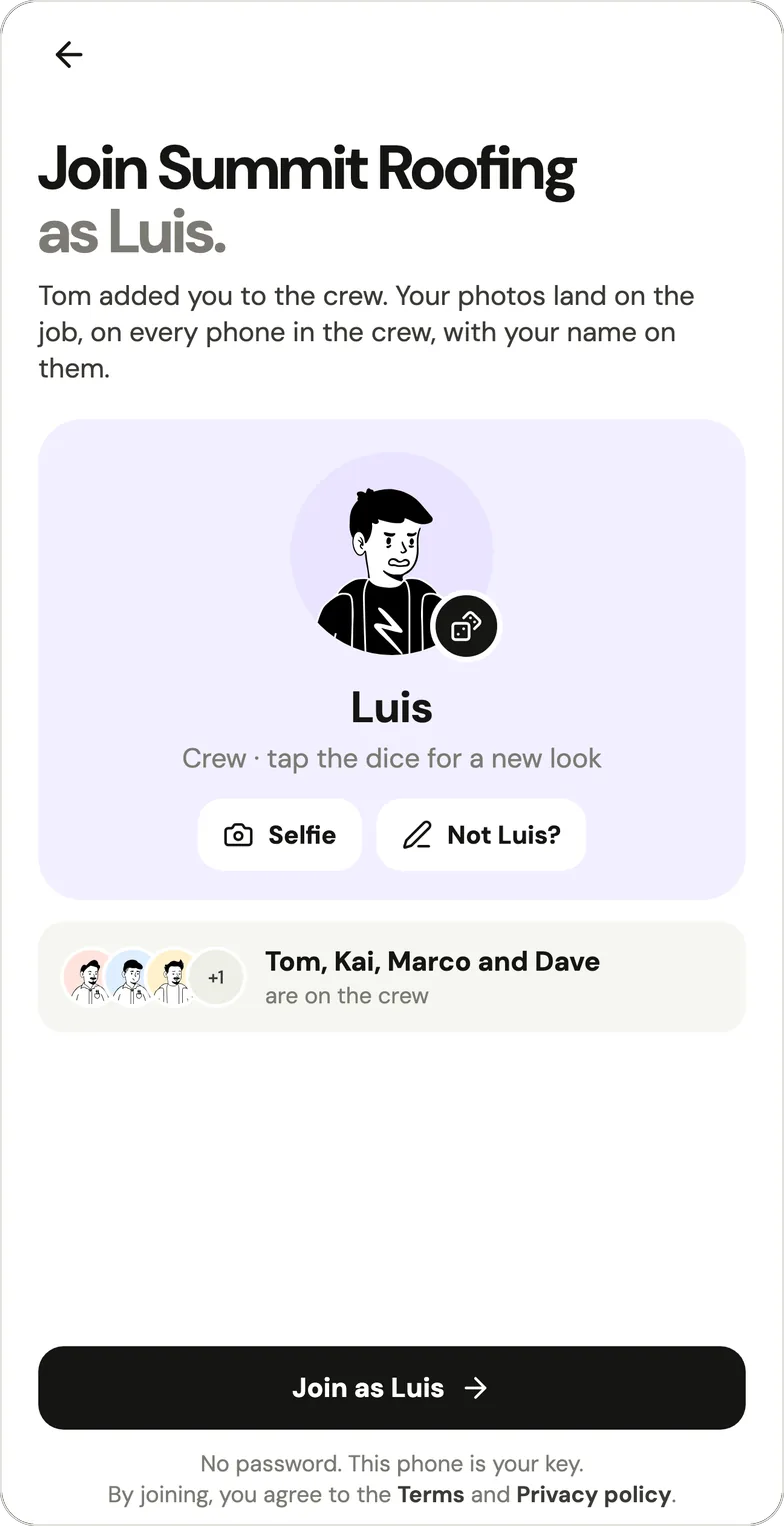
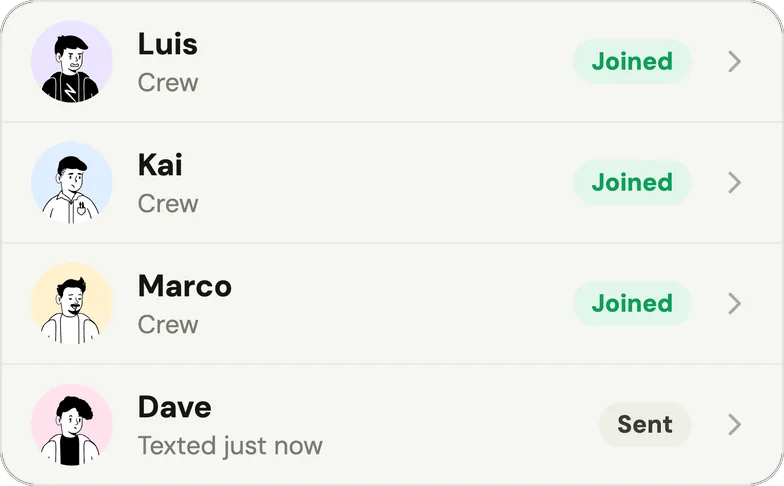
If they don't have Handle yet, the same link opens a page to get the app from the App Store or Google Play, with their 6-character code. On Android, Handle usually opens on their name by itself; on iPhone they open Handle, tap Join my crew, then Paste. Only the owner signs in, with an email and a 6-digit code. In Settings, each name says where its link stands: Sent, Opened, then Joined (help: How do I add someone?). When someone leaves, the owner removes them there: they lose access right away, and their photos stay on the jobs.
Which app puts a photo on the right job?
A job photo app files each photo on a job by where the phone is, by what you pick, or both. CompanyCam files photos in projects and saves each photo's location; Handle (our app) picks the job by itself only when it's sure, and otherwise asks Which job? before you post.
In CompanyCam, every photo is "saved by location" (features), and printable project QR codes help avoid "mixups that can arise from location-based projects—like duplicate projects or multiple jobs in the same area" (photo and video capture, both as of October 2026).
How Handle decides (help: the right job):
- From a job's page, the camera adds to that job.
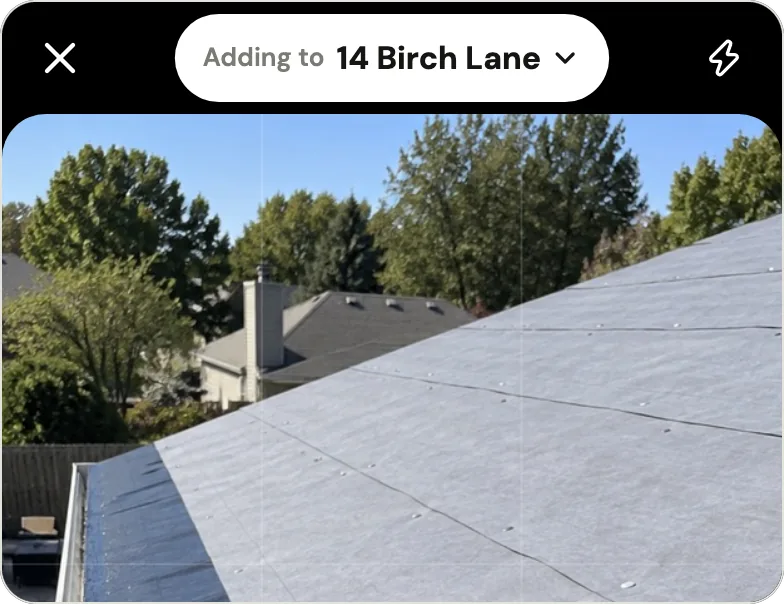
- From Home, it picks the job only when you're at that job's address, or you just posted to it from the same spot. The top of the camera then says Adding to 14 Birch Lane.
- Otherwise you pick the job after the photos, before you tap Post. On the wrong job anyway? Tap ⋯, then Move to another job; the photo keeps its time.
In the 657 CompanyCam reviews we coded, 8 complain about GPS putting photos on the wrong project.
Location works differently too. Handle saves where the phone is only at the moment of a photo, a voice note or a note, only while the app is open, and never in between (help: Does Handle track where I am?). The crew sees which job each photo is on; only the owner and the person who took it see its location line, such as "0.8 mi from the job" or "No location" (help: photo location). Apple's App Store listing for CompanyCam carries Apple's notice, as of October 2026: "This app may use your location even when it isn't open, which can decrease device battery life." On any iPhone, each person can still set an app's location access to While Using the App or Never in Settings, under Privacy & Security, then Location Services (Apple Support).
Will photos survive a roof with no signal?
Yes: CompanyCam and Handle both keep photos taken with no signal and upload them later. CompanyCam's Offline Mode queues photos and caches up to 60 recent, starred or assigned projects (Using Offline Mode, as of October 2026). Handle saves every photo on the phone first and sends it up once there's signal and Handle is open.
In Handle, a photo that hasn't gone up says Waiting for signal, Home says how many are waiting, and each photo keeps the time it was taken (help: No signal). On iPhone, photos wait if you swiped Handle away. The crew sees each photo on the job once it's up.
Reliability is the most common complaint in our sample: 110 of the 657 CompanyCam reviews we coded, written between 2017 and 2026, mention crashes, failed uploads or freezes, 17 mention lost photos, and 14 mention offline or signal problems. Those reviews cover nine years of heavy use. In both apps, saving on the phone first means a dead spot on a roof doesn't cost you the shot; it doesn't make either app crash-proof.
What does a photo you send a customer show?
As of October 2026, CompanyCam adds date/time and GPS stamps when a photo is taken, once each user turns them on. Handle writes its stamp when you send the photo: the time, who took it and your words, plus the job's address only when the phone was at or near the job.
CompanyCam's stamps "can't be removed once they've been added" (Adding Date/Time and GPS Coordinate Stamps, as of October 2026). Handle's stamp says only what the app can back:
- The time and date, for every photo taken with Handle's camera.
- The place, as At 14 Birch Lane or Near 14 Birch Lane, only when the phone was there. Away from the job or with location off, the stamp shows the time only, and the owner or the person who took it sees why.
- A camera-roll photo never passes as one taken on the job. Its stamp says "From the phone's photos", with the file's date when it has one, and the corner says "Sent with usehandle.app" instead of "Taken with usehandle.app".
- Never a map, coordinates or the word "verified".
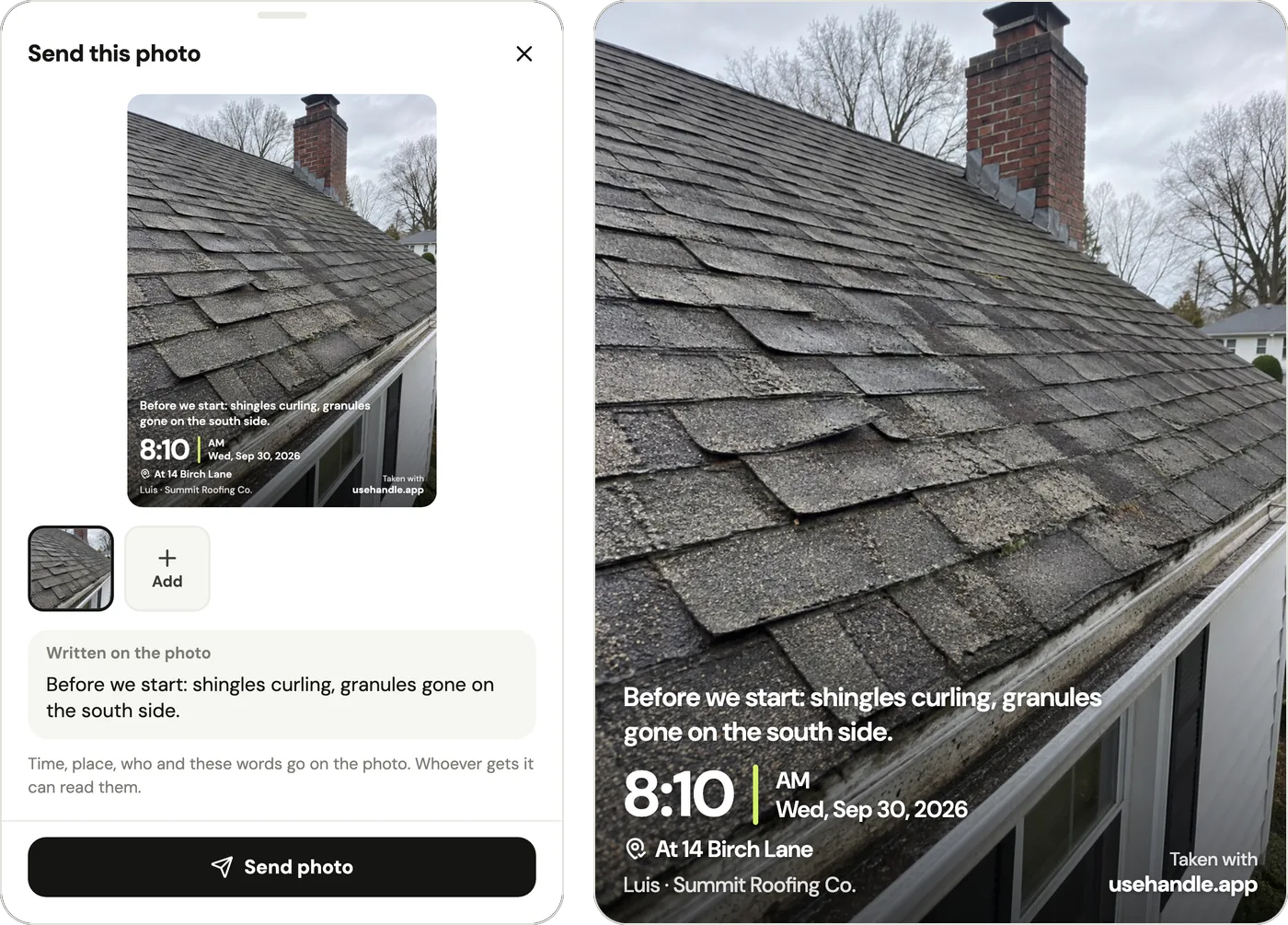
To send one, open the photo, tap the share button next to Take after, add a few words if you like, tap Send photo and pick a text, WhatsApp or email (help: send a photo). A before and after goes as one picture, each half with its own time. For the whole job, the owner taps the share button at the top of the job and Handle makes one PDF of its photos with their times and words, before and afters first (help: the job PDF). More on pairs that hold up: before and after photos customers trust.
How do you switch from CompanyCam to Handle?
Handle has no CompanyCam import, so switching is done by hand: download what you need from CompanyCam, start your crew in Handle, add the photos you still need from your phone's library to Handle jobs, then cancel CompanyCam on the web. Photos move, up to 10 at a time; tags, comments, checklists and reports don't. In Handle, each imported photo shows the name of the person who added it, not who took it in CompanyCam.
- Download from CompanyCam before you cancel. CompanyCam's help describes two ways (Downloading and Saving Photos, as of October 2026). For a full copy, each project in the web app has Download All Photos, which emails a zip (split into batches above 1,500 photos), with the original or the marked-up photos. For the photos you'll bring into Handle, select them in CompanyCam's phone app and tap Save to Device. CompanyCam says "Your content isn't deleted if you cancel and reactivate later", then adds: "This may change in the future, so we recommend downloading your photos before canceling if you want a local copy."
- Start your crew in Handle. Install Handle on your phone, tap Start my crew, name the business and sign in with your email and the 6-digit code. Then text each person their link.
- Bring over the jobs you still need. With those photos on your phone, open the job in Handle, open the camera and, before taking a photo, tap the square to the left of the shutter: it opens your photos. Pick up to 10 at a time. Handle keeps the date stored in each file, when there is one, but not where it was taken, and a sent copy is stamped "From the phone's photos".
- Cancel CompanyCam on the web. "You can only cancel your subscription in the web app", only an Admin can, and access lasts until the end of the billing period (Canceling Your Subscription). Annual plans are non-refundable, so time it with your renewal date.
| From CompanyCam | Moves to Handle? |
|---|---|
| Photos | Yes, by hand, up to 10 at a time, with the date stored in each file |
| Marked-up photos | Only as plain photos, if you download the marked-up versions |
| Where each photo was taken | No |
| Captions, comments, tags | No; type a word under the photos when you post them |
| Checklists, reports, documents, timelines | No |
| Integrations with other software | No |
You may not need to move finished, paid jobs at all: keep the zip. Move the open jobs and the ones a customer might still ask about. And if you leave Handle later, know that it has no bulk export today: the owner can send a whole job as one PDF, and anyone on the crew can send photos from a job.
Who Handle fits, and when Handle is not for you
Handle fits one crew, usually 2–10 people on iPhones and Android phones, whose owner wants everyone's photos kept job by job and proof ready when a customer asks. Skip it if someone needs a desktop or an iPad, or you need customer links, reports, checklists, search, integrations, invoices or a time clock.
- An office on a computer or an iPad. Handle is a phone app with no web or iPad version; CompanyCam has both.
- Scheduling, quotes, invoices or a time clock. Handle doesn't do these. Jobber or Housecall Pro run the office side, a time clock such as ClockShark covers hours, and Handle can sit alongside one of them for the photos.
- Search across thousands of photos. Handle has no search; you find photos by job or by person.
- Several crews and an office manager. Handle is built for one crew whose owner still works the jobs; its App Store description says crews of up to a dozen. A larger company is better served by CompanyCam or another paid tool from CompanyCam alternatives for small crews.
If none of those is you, try Handle on one week of jobs. If your crew's photos end up on the right jobs and you can answer a customer's "can I see the before pictures?" from your phone, you don't need to pay per person for that.
Questions owners ask
Is Handle really free for the whole crew?
Yes: Handle is free for your whole crew: no trial, no card, no per-person fees. Optional paid tools may come later; if they do, you see the price before you buy, and what you use for free today stays free unless Handle tells you at least 30 days before (help: Is Handle free?).
Does CompanyCam have a free version?
No. As of October 2026, CompanyCam offers a free 14-day trial with no credit card, then paid plans from $79 a month for one person, or $63 a month billed annually (CompanyCam pricing). It had a $0 plan from at least 2020 (for 1–3 users and 50 projects), still listed as "Basic" in March 2023; by May 2023 it was gone (archived pricing page, May 2023).
Can I use CompanyCam's Core plan with 3 people?
No. As of October 2026, Core 'Includes 1 User (2 User Limit)' and can't go past 2 users, so a third person means the Crew plan: $149 a month, or $119 a month billed annually (CompanyCam pricing).
Which phones does Handle work on?
Handle works on iPhone and Android: it's free in the App Store and on Google Play. There is no iPad or web version, so if someone in the office works from a computer or an iPad, CompanyCam, which also runs on iPad and the web, fits better.
Can I move my CompanyCam photos into Handle?
Yes, by hand. Save them to your phone with Save to Device in CompanyCam's phone app, then add them to a Handle job from your phone's photos, up to 10 at a time. Handle keeps the date stored in each file, when there is one, but not where it was taken. Tags, comments, checklists and reports don't move. Keep a full copy too: CompanyCam's web app emails each project's photos as a zip (CompanyCam help, as of October 2026).
Does Handle follow where my crew goes?
No: Handle saves where the phone is only at the moment someone takes a photo, a voice note or a note, while the app is open, and never in between (help: Does Handle track where I am?). The crew sees which job each photo is on; only the owner and the person who took it see its location line, such as "0.8 mi from the job" (help: photo location).
Is Handle the same as Handle.com?
No. Handle (usehandle.app) is a job photo app for small field crews. Handle.com is construction lien and payment software, and Handle by Texada is a CRM, both unrelated to this app.
Every photo, on the right job.
Handle is free for your whole crew: no trial, no card, no per-person fees. On iPhone and Android.